


Teleprompter: Vlog & Scripts
4.8200.00 Reviews
App Specs
- Version
- 7.0.4
- Updated On
- License
- Free
- Downloads
- 1,000,000+
- Developer
- Solid Labs Co., Ltd
- Categories
- Productivity
- Platform
- Android, iOS
Screenshots
 Analysis by AppCompare
I judge a teleprompter app by a simple question: does it help me speak clearly without making me sound like I’m reading? Teleprompter: Vlog & Scripts is built for that practical job, pairing a scrolling script with video recording and controls that let you adjust how the words appear. I see its strongest appeal in short, planned videos where a missed line means stopping and starting again. It is less compelling if you mainly film spontaneous clips or want a full editing studio in one app.
A useful fit for planned videos
As a productivity app from Solid Labs Co., Ltd, it treats a script as part of the recording workflow rather than a document you prepare somewhere else and keep beside the camera. That distinction matters when you are trying to deliver a tutorial, a product explanation, or a work update in one take. Instead of glancing down at notes, you can keep your attention near the lens and follow your outline as it moves.
The app is free to install, with optional in-app purchases ranging from $1.99 to $59.99 per item. It is rated for Everyone and has a 4.7 average from around 14,000 ratings, with over 1 million installs. Those figures suggest it has found a broad audience, but they are not a substitute for deciding whether a scrolling script suits the way you speak. Its current version is 6.6.6, and it runs on Android 8.0 or later.
Getting Started with Teleprompter: Vlog & Scripts
First things first, downloading and setting up the Teleprompter: Vlog & Scripts app is a breeze. Available on both Android and iOS, I found it in the app store and had it ready to go in no time. The user interface is intuitive, making it easy for even the most tech-challenged among us to get started quickly.
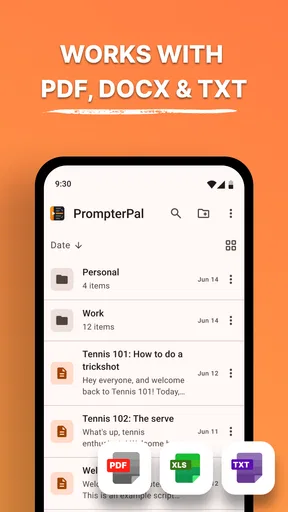
Once installed, the app greets you with a simple dashboard. You can either type in your script directly or import it from your device. The app supports multiple file formats, which is a huge plus. I was up and running with my first script in just a few minutes.
Features that Stand Out
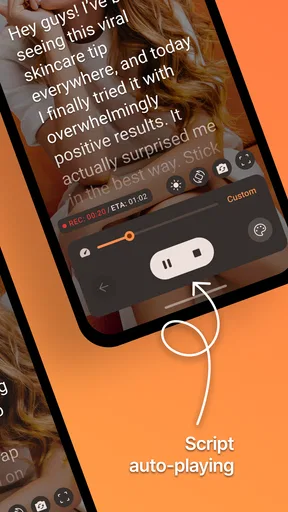
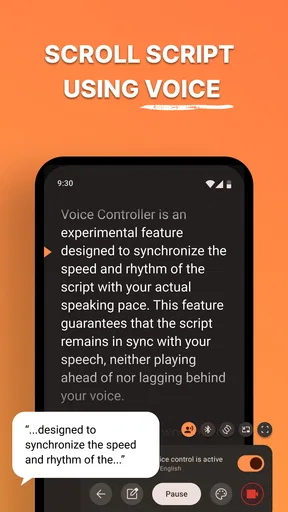
Now, let’s dive into the features that really make this app shine. The standout feature for me was the adjustable speed control. You can tweak the scrolling speed of your script, which is awesome because you can match it perfectly with your speaking pace. No more rushing through sentences or awkward pauses!
Another feature I loved is the mirror mode. If you’re using a separate camera setup, this mode flips your script so it’s readable in a mirror, ensuring you maintain eye contact with your audience without missing a beat.
Worth Reading Before You Choose

EA SPORTS FC Mobile 26 Is a Bigger Football Game, but It Takes Time

Flipboard Shows What News Apps Must Do Beyond the Feed

Switching to Android Auto Means Rethinking Your Driving Routine

Google Calendar Makes a Crowded Week Easier to Manage

Ludo King Makes the Most of the Minutes Between Plans

Baby Panda World Brings Quick Play to Modern Phones, but Its Game Library Feels Busy
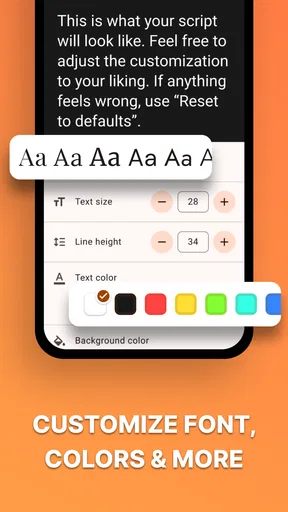
The app also allows you to change text size and color, which might seem minor but makes a big difference when you’re trying to read comfortably from a distance. It’s these little details that show how thoughtfully designed this app is.
Making a script sound spoken, not read
A teleprompter can only help if the writing works on screen. I recommend breaking a long draft into short thought groups, with line breaks where you would naturally pause. That makes it easier to recover if your eyes jump ahead and helps you keep your delivery conversational. A dense paragraph may look fine in a word processor but can become a wall of text when you are trying to speak and track a moving line.
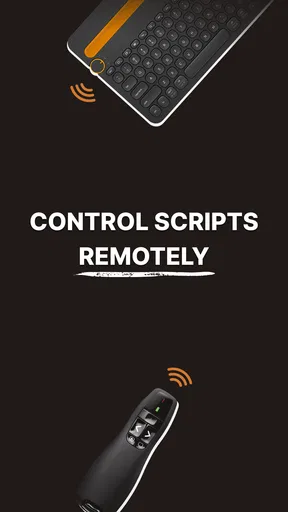
Before recording, I would rehearse a few sentences at a comfortable pace and adjust the scroll to match my actual delivery, not an imagined “presenter voice.” If the text keeps moving while you pause to emphasize a point, slow it down or revise the script to include shorter phrases. If you use a Bluetooth control, it can be useful to keep a pause or restart within reach; that gives you a way to recover without tapping around the screen while framing a shot.
There is a trade-off here: reading every word can make a take precise, but it can also flatten the energy of a personal story. For an introduction, key facts, or a closing call to action, I would use a complete script. For the middle of a relaxed vlog, a few prompts may sound more natural than a fully written speech. The app is most useful when you choose the right level of scripting rather than treating every video as a word-for-word performance.
Recording with Ease
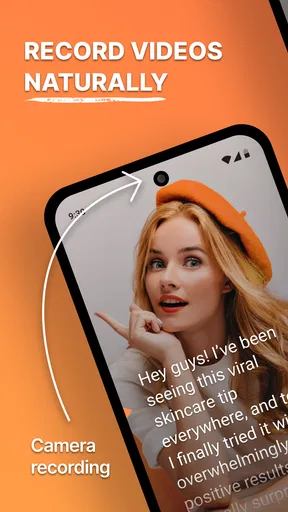
One of the most convenient features is the built-in recording option. You can use your phone’s camera to record directly from the app. It’s seamless and makes the process of filming and reading your script simultaneously much less cumbersome.
The app also supports external cameras, which is a bonus if you’re aiming for higher-quality video. Plus, it can integrate with professional mic setups, ensuring your audio is just as spot-on as your visuals.
Choosing the right recording setup
For a quick, single-person clip, recording on the phone keeps the setup simple: prepare the words, position the device, check that the text is easy to read, and make a short test take. I would listen to that test before committing to a longer recording. A prompt can solve forgotten lines, but it cannot tell you whether the microphone is picking up room noise or whether the camera angle feels right.
If you are filming with a separate camera, plan where the script will sit in relation to the lens. The closer your reading position is to the camera, the less noticeable the eye movement tends to be. Mirror mode is relevant to a reflected display arrangement, but it is not a universal fix for every camera rig; test the orientation and framing before recording a full segment. Small adjustments to placement can matter more than adding another piece of equipment.
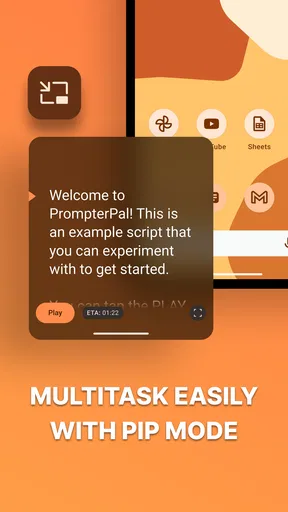
Bluetooth control and floating notes give the workflow more flexibility when your hands are occupied or when you want reference material alongside the main script. I would use notes sparingly, though. Too many prompts compete for attention, and a teleprompter works best when the next line is easy to find. Keep essential cues—such as a product name or a transition—brief, and put supporting detail in the script itself if you need to say it aloud.
Where it differs from ordinary notes and camera apps
A notes app is better for collecting ideas, editing a rough draft, and organizing material. It is not designed to move that text at a speaking pace while you record. A standard camera app, meanwhile, is often the simplest choice when you do not need a script at all. This app sits between those options: it is for the moment when prepared words and filming need to happen together.
That focus is both its advantage and its boundary. It can make a straightforward talking-head recording less fiddly, but I would not choose it instead of a dedicated video editor when the job is trimming, arranging multiple scenes, adding detailed graphics, or polishing a finished production. Nor would I expect a scrolling script to replace practice. The best result still comes from knowing the material well enough to look up, breathe, and speak with some variation.
Real-Life Application
So, how does this translate into real-world use? Let me tell you, it’s a game-changer. Whether I’m filming a tutorial, a product review, or just sharing my thoughts on the latest tech trends, this app keeps me focused and natural. No more forgetting lines or losing my train of thought halfway through a take.
The app has also saved me countless hours in editing. With fewer mistakes and retakes, I can cut down my post-production time significantly. That means more content gets out faster, and I can spend more time engaging with my audience.
A realistic one-person workflow
Imagine recording a short how-to after work, when you have only a little time and several steps to explain in the right order. I would draft the explanation, import it or type it in, then read it aloud once before filming. That read-through is where awkward phrases and missing transitions become obvious. I would shorten those lines, set the text to a comfortable size, and make a brief test recording to check both framing and pace.
During the actual take, the script can hold the sequence together while I concentrate on demonstrating the steps. If I stumble, I can pause, find the last clear sentence, and continue rather than restarting the whole video. The practical benefit is not just fewer retakes; it is less mental effort spent remembering what comes next. For a spontaneous reaction or a quick clip that depends on an unplanned moment, however, setting up a script may take longer than simply opening the camera.
Who will get the most from it
I would recommend trying it if you regularly record explainers, lessons, product walkthroughs, announcements, or other videos where accuracy and sequence matter. It is particularly helpful for people who know what they want to say but lose their place once the camera is on. The adjustable display and pace can also help when you need to read from a distance or work with a reflected setup.
It is not the right tool for everyone. If your style depends on improvisation, expressive movement, or frequent changes in framing, following a scrolling script may feel restrictive. People who want a complete production suite should also look elsewhere for editing and finishing tools. And if you only need occasional reminders, a short set of notes may be quicker and less distracting than running a full teleprompter.
One question worth settling before relying on it is whether your preferred camera setup fits the way you want to read. Try the phone camera first, then test any external arrangement with a short script. Another is whether the free version covers your routine: optional purchases are available, so check the in-app options against the controls you actually expect to use rather than assuming every capability is included without charge. A final practical question is whether you prefer a full script or cues; experimenting with both will show which produces the more natural take for you.
Final Thoughts
All said and done, Teleprompter: Vlog & Scripts is a stellar app for anyone looking to up their video production game. Its user-friendly interface and array of customizable features make it a worthy addition to any vlogger’s toolkit. Whether you’re a seasoned pro or just starting, this app will help you create polished, professional content with ease.
So, if you’re ready to take your vlogging to the next level, give this app a try. I promise, you’ll wonder how you ever managed without it!
My verdict
My recommendation is strongest for anyone who records planned, direct-to-camera videos often enough to benefit from keeping the script close to the lens. The ability to control the reading pace, adjust the text, and work with a recording setup gives it a clear purpose beyond ordinary notes. I would start with a short script and a test take, then decide whether the rhythm feels natural before building it into a regular routine.
If you mostly film off the cuff, need advanced post-production, or find that reading makes you less expressive, a camera app, notes app, or editing-focused tool may suit you better. For the right kind of creator, though, this is a practical productivity aid: it helps organize delivery without demanding a complicated recording process. The key is to use it as a guide, not a substitute for speaking to the person on the other side of the camera.
Pros
- User-friendly interface for easy navigation.
- Customizable text size and speed settings.
- Supports multiple scripts simultaneously.
- Remote control feature for hands-free use.
- Compatible with various camera apps.
Cons
- Limited free version features.
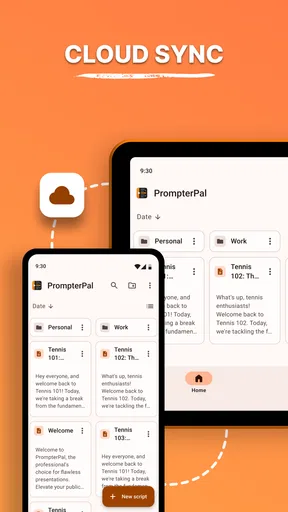
- Occasional syncing issues.
- High battery consumption.
- Ads can be intrusive.
- No offline script editing option.
FAQs for Teleprompter: Vlog & Scripts
What features does Teleprompter: Vlog & Scripts offer?
Teleprompter: Vlog & Scripts is designed to aid content creators with features such as adjustable scrolling speed, mirror mode, and script import options. Users can easily upload scripts from cloud storage or type directly within the app. The app also supports various text sizes and colors, making it customizable to suit individual needs.
Is Teleprompter: Vlog & Scripts suitable for beginners?
Yes, Teleprompter: Vlog & Scripts is user-friendly and ideal for both beginners and seasoned vloggers. The intuitive interface allows for easy navigation, and the app provides helpful tutorials to guide new users through its features. This makes it accessible for anyone looking to improve their video presentations.
Can I use Teleprompter: Vlog & Scripts offline?
Teleprompter: Vlog & Scripts can be used offline once the scripts are downloaded or created on your device. This is particularly beneficial for users who need to film in locations without internet access. However, initial script imports from cloud services will require an internet connection.
Is there a cost associated with using Teleprompter: Vlog & Scripts?
Teleprompter: Vlog & Scripts offers a free version with basic features. However, to unlock advanced functionalities such as higher script limits, more customization options, and ad-free usage, users may need to purchase a subscription or a one-time premium upgrade, depending on their needs.
How can I import scripts into Teleprompter: Vlog & Scripts?
Scripts can be imported into Teleprompter: Vlog & Scripts using several methods. Users can upload documents from cloud services like Google Drive, Dropbox, or OneDrive. Alternatively, scripts can be typed directly into the app's editor. The app supports various file formats, ensuring flexibility and ease of use.


